WiFi Troubleshooting
Having dropouts, losing programming or have device pairing problems? 99% of the time it's your WiFi router causing the problem and not the device itself! Almost all LED WiFi controllers on the market (including ours) only operate on the 2.4GHZ band and most modern routers try and band steer them to 5ghz rendering them inoperable.
Here's a guide how to solve router issues:-
- Log into your home router settings.
- Look for an option to split your Wi-Fi into separate 2.4 GHz and 5 GHz channels (often called 'Separate SSIDs'). Routers configured with one SSID for both 2.4ghz and 5ghz are notorious for steering all traffic to 5gz and LED Wifi controllers wont work on 5G. Separating the bands into two SSID's will prevent this from happening.
- When setting up the controller using WiFi make sure you chose the 2.4ghz band only.
- If you have more than one WiFi router in your home e.g. mesh systems, you have to prevent the network from trying to move the smart controller between different physical access points. Because the mini controller is a stationary object, it never needs to roam. You can lock it into place using a few different settings on the router or mesh app:1. Enable "Lock to AP" / "Fixed BSSID" (The Best Fix)Most modern mesh systems (such as ASUS AiMesh, Ubiquiti UniFi, TP-Link Deco, and Linksys Velop) have a setting in their mobile apps to lock a specific device to a single router puck.How it works: You open the router app, find your mini inline controller in the device list, and look for a setting called "Lock to AP," "Connection Preference," or "Fixed BSSID. The mesh system is then explicitly ordered to never try to push or steer that controller to any other node in the house.
- Disable "Fast Roaming" (802.11r / 802.11k/v)Fast Roaming protocols are designed to help moving devices (like your smartphone) seamlessly hop from the downstairs router to the upstairs router while you walk around the house.How it works: Led Controllers do not understand these roaming protocols. When the router sends a command telling the controller to prepare to switch nodes, the controller crashes or drops offline.The Result: Disabling "Fast Roaming," "802.11r," or "Mesh Technology" specifically for that device (or globally on the 2.4 GHz IoT band) stops the routers from aggressively forcing handoffs.
- Use a Dedicated IoT Network or Guest NetworkAlmost all multi-router systems now feature a toggle to turn on an isolated "IoT Network."How it works: This creates a completely separate wireless network just for smart home tech.The Result: Mesh systems usually apply much gentler, passive management rules to the IoT network. They turn off aggressive node steering entirely on this band because they know smart plugs, switches, and light controllers are stationary objects that do not move.
Iif you aren't able to do these things or are still having trouble then use Bluetooth connectivity instead of WiFi, most of our dimmers and controllers offer both ways to connect.
Factory Reset
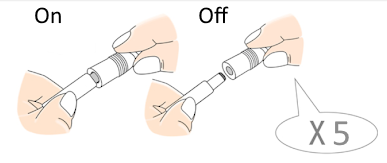
If for some reason you want or need to factory reset the controller, you can reset by doing the power “on-off-on-off-on-off-on-off-on” reset procedure as shown in the picture. If reset is successful, your light will strobe on and off repeatedly. After reset you can add the device back into the app and set things up again.
NOTE: The spot to unplug for the on-off sequence is between the power supply plug and the controller. The sequence normally needs 5 x On/Off but may only need 3 or 4 on//off depending on how fast or slow you're doing it. Keep going until your lights strobe.